Turn a Still Into a Shot
The problem
Your image looked like a film frame. Your video looks like a screensaver. Everything moves at once, the camera drifts for no reason, and by second four your character has melted. Image-to-video is not "add motion". It is directing one shot, and it rewards the same discipline a real shot does: decide what moves, decide what the camera does, and keep everything else still.
How image-to-video reads your input
Your image is the first frame. It sets composition, subject, light and style, and the model will keep those. Your prompt should describe what happens next, not what is already visible. Describing the image again wastes words and invites the model to redraw things you liked.
Steps
- Start from a clean still. No blurry hands, no half-drawn faces. Whatever is slightly wrong in the still gets amplified once it moves. Fix it in the image model first (see Stop Fighting the Model, Start Editing It).
- Check for implied motion. Motion blur, dust clouds, hair mid-swing, a leaning pose. The image already "wants" to move a certain way. If your prompt asks for the opposite, expect a fight. Either prompt with the cue or remove it from the still.
- Write one sentence: camera, then subject. Runway's recommended structure is
The camera [motion] as the subject [action]. [extra detail]. Keep it to one camera move and one subject action for your first pass. - Pick a duration that fits the action. Gen-4.5 gives you 2 to 10 seconds at 720p. A slow push-in with a small gesture wants 5 seconds. A two-beat action ("she looks up, then stands") wants 8 to 10. Cramming two beats into 3 seconds is where the melting comes from.
- Say what should not move. Video models are built to produce motion. If you want a locked frame, say so: "The locked-off camera remains perfectly still. Minimal subject motion only." Otherwise you get drift.
- Iterate by adding, not rewriting. If the first result is 70 percent there, add one clause. Do not throw the prompt away. You will learn faster what each addition does.
Prompt = what happens next
Your still
Frame one. Composition, subject, light and style are already decided. Don’t describe them again.
Camera move
One move, or locked off.
Subject action
One action per pass.
What stays still
Say it, or the model adds drift.
Worked example
Still: a woman at a night bus stop, rain, sodium light, medium shot.
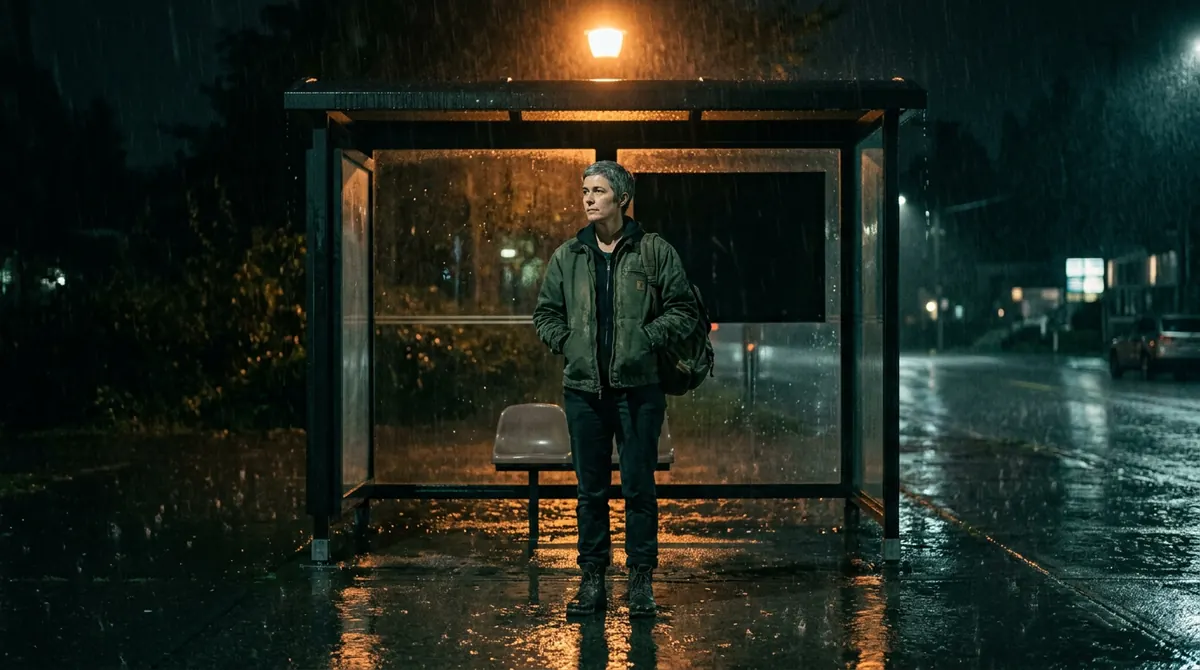
First pass:
The camera slowly pushes in as the woman turns her head toward the approaching headlights. Rain continues to fall. Continuous, seamless shot.Second pass, after the first one drifted:
The locked-off camera remains perfectly still as the woman turns her head toward the approaching headlights, off frame left. Rain continues to fall. Minimal subject motion only. Continuous, seamless shot.Duration: 5 seconds. Aspect ratio: leave it on the image's own ratio unless you want a crop.
Kling notes
Kling works the same way with two extras worth knowing: a first and last frame option (give it a start image and an end image and it animates between them, which is the most reliable way to get an exact end pose) and Elements, up to four reference images for keeping a character consistent across clips. Native output is 1080p and clips run longer than Runway's, so it is often the better pick for a slow, single-move shot.
Your move
Try this today
Take one still you already like. Write a single-sentence prompt in the camera-then-subject structure. Generate at 5 seconds. Then generate the exact same prompt with "The locked-off camera remains perfectly still" added at the front. Watch both twice. You now know what the default drift looks like and how to kill it.
Stop waiting – start creating!